Wildlife
Adding 2nd External Drive - iMac
14 replies 1058 views
14 replies 1058 views
09-29-2023, 08:53 AM
Need help. Running out of room on an external drive that holds all my photos. I can go in and delete a lot of files that I know I will never use. It is time consuming.
Is there a way to add a 2nd external drive and daisy chain it so once the first drive is full, I can automatically save my photos to the 2nd drive? I have an iMac desktop computer. I use Lightroom to view my photos and begin to edit them.
Steve Johnson
Is there a way to add a 2nd external drive and daisy chain it so once the first drive is full, I can automatically save my photos to the 2nd drive? I have an iMac desktop computer. I use Lightroom to view my photos and begin to edit them.
Steve Johnson
09-29-2023, 07:01 PM
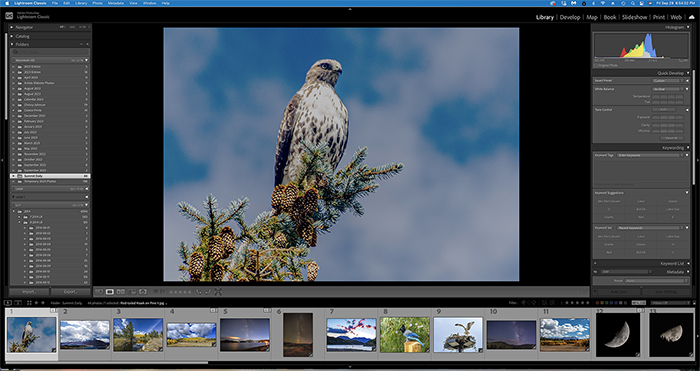
I want to add another External Drive that I have named Lr 1a.
How to I get it placed on my Lightroom below my current Lr 1 External drive? Shown on the left side of this screen shot.
Steve Johnson
09-30-2023, 04:19 AM
Hi Steve,
To the best of my knowledge, I don't think a "daisy chain" will work. I could be wrong, but in my experience this is what you might do.
If you want everything to be on one hard drive, make sure your next hard drive has more space for data than the one you are currently using. So, for instance, if you have 1 TB, maybe expand up to 2 TB or more. Make sure you have backed up Lightroom on your original external hard drive (EHD) and possibly on your mac's internal hard drive (I always make some Lightroom backups to my Pictures folder, and I always back up in at least 2 different places for security).
Then, the next time you add images to LR, make sure you have your new hard drive is plugged in, and save your images to your new hard drive. After loading your latest images, you should see your new EHD on the left side of Lightroom with your new file of images underneath, ready to edit.
Now, to consolidate ALL of your images onto your newest and latest hard drive, have both hard drives plugged in, and select all of your files on your previous EHD, and drag them over to your newest hard drive. A suggestion though - I wouldn't select all of them at once, but maybe select several files at a time and move them over so that you can keep up and make sure they are all copied onto your new hard drive.
Now, that you have moved your older files over to your new EHD, you will probably see question marks on those files you have moved to the new EHD. We have to "show" Lightroom where those older files are now living. So select a file with a question mark, right click, and click on the message to "find the missing file". From here you will go into your new EHD, find the missing file, click on the file, and now Lightroom will know where that file is, and the question mark should disappear. You will have to do this with all the files you have moved over. It's a tedious process, but it's the only way I know to consolidate all of your images onto one drive.
I hope this helps. Additionally, if you wish, you can call Lightroom for assistance. The number is (800) 833-6687.
To the best of my knowledge, I don't think a "daisy chain" will work. I could be wrong, but in my experience this is what you might do.
If you want everything to be on one hard drive, make sure your next hard drive has more space for data than the one you are currently using. So, for instance, if you have 1 TB, maybe expand up to 2 TB or more. Make sure you have backed up Lightroom on your original external hard drive (EHD) and possibly on your mac's internal hard drive (I always make some Lightroom backups to my Pictures folder, and I always back up in at least 2 different places for security).
Then, the next time you add images to LR, make sure you have your new hard drive is plugged in, and save your images to your new hard drive. After loading your latest images, you should see your new EHD on the left side of Lightroom with your new file of images underneath, ready to edit.
Now, to consolidate ALL of your images onto your newest and latest hard drive, have both hard drives plugged in, and select all of your files on your previous EHD, and drag them over to your newest hard drive. A suggestion though - I wouldn't select all of them at once, but maybe select several files at a time and move them over so that you can keep up and make sure they are all copied onto your new hard drive.
Now, that you have moved your older files over to your new EHD, you will probably see question marks on those files you have moved to the new EHD. We have to "show" Lightroom where those older files are now living. So select a file with a question mark, right click, and click on the message to "find the missing file". From here you will go into your new EHD, find the missing file, click on the file, and now Lightroom will know where that file is, and the question mark should disappear. You will have to do this with all the files you have moved over. It's a tedious process, but it's the only way I know to consolidate all of your images onto one drive.
I hope this helps. Additionally, if you wish, you can call Lightroom for assistance. The number is (800) 833-6687.
09-30-2023, 07:45 AM
I use an inexpensive software product called Carbon Copy Cloner. You could get a large external drive (maybe twice the size of the one you are using), connect it to your computer, and copy all of the images to it. Get a second external drive and periodically copy all of the files to it (ie, synch the 2 drives). Then you would have a backup. I'm not sure how to get LR to know which drive has the images.
09-30-2023, 08:09 AM
Any time you move photos that are part of your LR catalog always do it inside LR, you can do easily move files in LR by grabbing and dropping them to a new drive/location, then all your links stay intact. The same applies to adding and or deleting files, if you do it from LR it keeps your catalog in sync and lightroom can always find them.
09-30-2023, 12:27 PM
Apple indicates you can create a concatenated disk set. Check this out. Backup before you try. :-)
https://support.apple.com/guide/disk-utility/overview-of-creating-disk-sets-dskufd8dce72/mac
I know moving files is a slow tedious task..... took me two days to move my photos to a bigger drive and then I had to remap in LR.
I learned a lot
https://support.apple.com/guide/disk-utility/overview-of-creating-disk-sets-dskufd8dce72/mac
I know moving files is a slow tedious task..... took me two days to move my photos to a bigger drive and then I had to remap in LR.
I learned a lot
09-30-2023, 01:03 PM
I, like Howard, also use Carbon Copy Cloner as an additional backup. However, I don’t think you can use it as your EHD for Lightroom.
09-30-2023, 01:05 PM
That’s good to know Bob! I didn’t know that was possible! I’ll try that next time. It could save a lot of time.
09-30-2023, 03:22 PM
I now can download photos to Lr 1a. But I don't see it showing up on below or above Lr 1.
It shows up on my desk top but not in Lightroom Classic. I start new a new folder each new year. Then I add subfolders of each month of the new year. I download to the latest Subfolder which is September 2023. I want to be able to do the same thing with my new external drive Lr 1a.
It shows up on my desk top but not in Lightroom Classic. I start new a new folder each new year. Then I add subfolders of each month of the new year. I download to the latest Subfolder which is September 2023. I want to be able to do the same thing with my new external drive Lr 1a.
09-30-2023, 03:25 PM
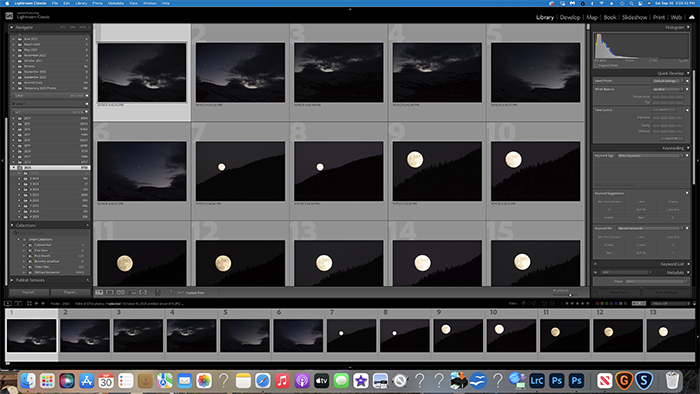
Trying to get Lr 1a, my new external drive, at the same area on the Lightroom menu.
Steve Johnson
10-01-2023, 02:15 AM
Steve,
When you imported your photos to LR 1a, did you select that drive on the right side of the Import panel for those photos to be copied to?
Jules
When you imported your photos to LR 1a, did you select that drive on the right side of the Import panel for those photos to be copied to?
Jules
10-01-2023, 09:55 PM
Yes.. I have the right drive now showing on the Import Panel - Right Side
Looks like I have two of the same Lr 1a showing up on the left side now. I hope to be able to figure that out and fix it.
I can download and edit photos now. I just need to clean-up the left side menu now.
Thanks
Looks like I have two of the same Lr 1a showing up on the left side now. I hope to be able to figure that out and fix it.
I can download and edit photos now. I just need to clean-up the left side menu now.
Thanks
10-01-2023, 10:37 PM
02-07-2024, 03:15 PM
I, like Howard, also use Carbon Copy Cloner as an additional backup. However, I don’t think you can use it as your EHD for Lightroom.
07-13-2024, 07:00 PM
Steve,
When you imported your photos to LR 1a, did you select that drive on the right side of the Import panel for those photos to be copied to?
Jules
When you imported your photos to LR 1a, did you select that drive on the right side of the Import panel for those photos to be copied to?
Jules
Login to post a reply.
All images on this site are copyrighted by the photographers and are intended for viewing only. They are
not to be downloaded or reproduced in any way without the written permission of the photographer.
not to be downloaded or reproduced in any way without the written permission of the photographer.