Techniques
Lightroom question
5 replies 746 views
5 replies 746 views
05-09-2021, 01:30 PM
Having a problem with Lightroom. If I have a photo in the Library module and then I go to the develop module the photo looks exactly the same in each module. But if I go to the print module, the same photo looks undersaturated and less vibrant than the Develop module view.
I have looked on the web and there are discussions about differences between the library and develop modules but not between the develop and print modules.
Any help would be appreciated.
I have lightroom classic Version 10.2
Rob Palmer
rob@falconphotos.com
I have looked on the web and there are discussions about differences between the library and develop modules but not between the develop and print modules.
Any help would be appreciated.
I have lightroom classic Version 10.2
Rob Palmer
rob@falconphotos.com
05-09-2021, 01:35 PM
Rob, possibly a question to pose to the speaker Tuesday night at the digital workshop?
Tom
Tom
05-10-2021, 07:00 AM
Rob I had similar situation and worked through it via help from Ashley at Duraplaq. It ended up being some sort of color profile setting, somewhere I had an sRGB setting that wasn't getting converted to the larger Adobe RGB during my workflow.
A good question for Tuesday Training as well.
A good question for Tuesday Training as well.
05-10-2021, 07:57 AM
I also have had problems with colors when printing images. There are two places to check your color space in photoshop. (1) under Image/Mode/Color/sRGB, (2) under Edit/Convert to Profile. When I use a Topaz product, my color profile always changes to ProPhoto. I have described my workflow below.
I shoot in RAW and I have my camera set to sRGB. I import my images from my camera into Lightroom.
Step 1 – I make my adjustments in Lightroom.
Step 2 – I take the image into Photoshop to refine some adjustments. I save that image back to Lightroom.
Step 3 – I take the image into Topaz Sharpen or DeNoise or Gigapixel (Photo/Edit/Edit in DeNoise/Edit a copy with Lightroom Adjustments). All three products cause what I am about to describe. I make my adjustments and save the image back to Lightroom.
Step 4 – I take the image to Photoshop to size it for prints. I check Image/Mode/Color and it says RGB. However, if I look at Edit/Convert to Profile, it indicates the source color is ProPhoto.
If I print it without changing the Convert to Profile and make the source color sRGB, the colors are off.
I shoot in RAW and I have my camera set to sRGB. I import my images from my camera into Lightroom.
Step 1 – I make my adjustments in Lightroom.
Step 2 – I take the image into Photoshop to refine some adjustments. I save that image back to Lightroom.
Step 3 – I take the image into Topaz Sharpen or DeNoise or Gigapixel (Photo/Edit/Edit in DeNoise/Edit a copy with Lightroom Adjustments). All three products cause what I am about to describe. I make my adjustments and save the image back to Lightroom.
Step 4 – I take the image to Photoshop to size it for prints. I check Image/Mode/Color and it says RGB. However, if I look at Edit/Convert to Profile, it indicates the source color is ProPhoto.
If I print it without changing the Convert to Profile and make the source color sRGB, the colors are off.
05-10-2021, 04:06 PM
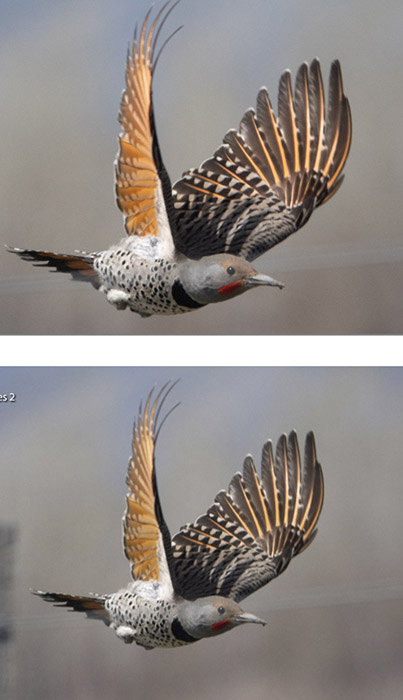
Thanks, Rob
05-11-2021, 12:39 PM
I found the solution/bug. I went to the Adobe Community page and stated the issue. It turns out if you use the "zoom to fill" button, the print screen returns to the initial photo without develop changes. https://feedback.photoshop.com/conversations/lightroom-classic/lightroom-classic-100-using-the-zoom-to-fill-function-in-the-print-module-shows-the-original-unedited-version-of-the-photo/5fc297e6ecf16939894a4edf
Its a bug Adobe knows about and they should address it in the next version. It may only be present with Apple products with Big Sur.
Its a bug Adobe knows about and they should address it in the next version. It may only be present with Apple products with Big Sur.
Login to post a reply.
All images on this site are copyrighted by the photographers and are intended for viewing only. They are
not to be downloaded or reproduced in any way without the written permission of the photographer.
not to be downloaded or reproduced in any way without the written permission of the photographer.